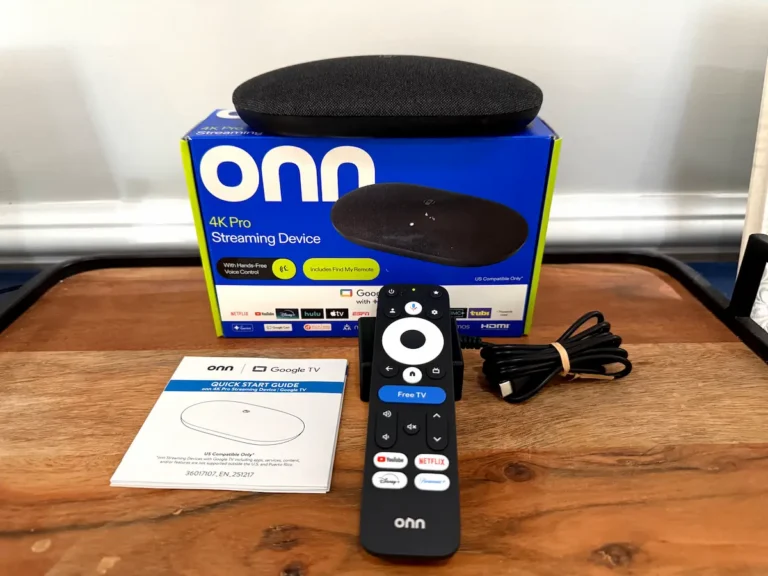
The Onn 4K Pro can stream your library from a separate Plex Media Server, but it cannot run a supported Plex server itself. For direct USB playback, use a compatible local player such as Nova Video Player, Just Player, Kodi, or VLC, with support depending on the drive format and media files.
Walmart’s Onn 4K Pro combines Google TV, 3GB of RAM, 32GB of storage, a full-size USB-A port, and built-in Ethernet. Those features give you several ways to watch a personal movie collection, but choosing the right setup starts with deciding where the files will live: on a separate server or on a drive connected directly to the television’s streaming box.
Can the Onn 4K Pro Run Plex Media Server?
Plex separates the software that organizes and serves your library from the app that plays it. The server scans your folders, retrieves artwork and information, and prepares streams for connected players. The Plex app on the Onn is the player.
Plex’s supported server platforms include Windows, macOS, Linux, compatible NAS devices, and NVIDIA Shield. The Onn 4K Pro is not listed as a supported server platform. Its USB port and storage capacity do not add that capability.
NVIDIA Shield is a special case within Android TV. The 2019 Shield TV Pro can run Plex Media Server, while the cylindrical 2019 Shield TV cannot. Some older Shield models also support the server, so support is not exclusive to the 2019 Pro. See Plex’s Shield setup documentation for the distinction.
2024 vs. 2026 Onn 4K Pro: Check the USB Port
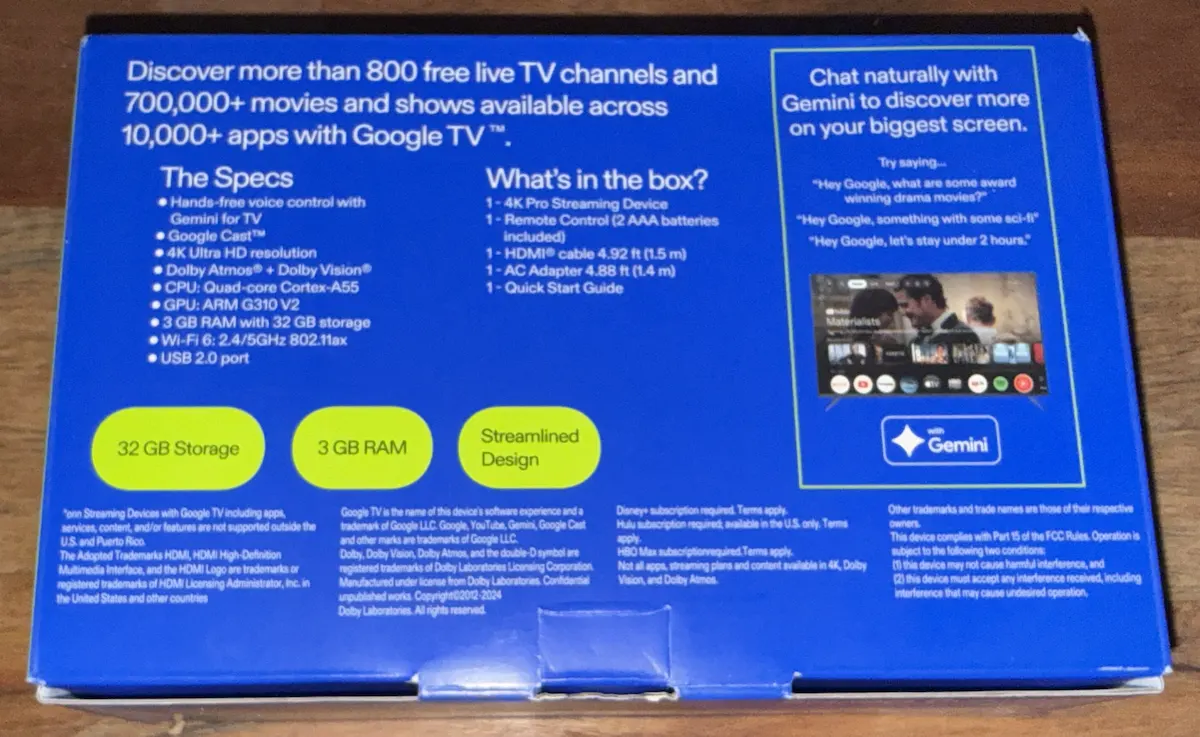
The Onn 4K Pro name covers more than one generation. Both the original 2024 model and the 2026 replacement offer 3GB of RAM and 32GB of advertised storage, but their USB connections differ.
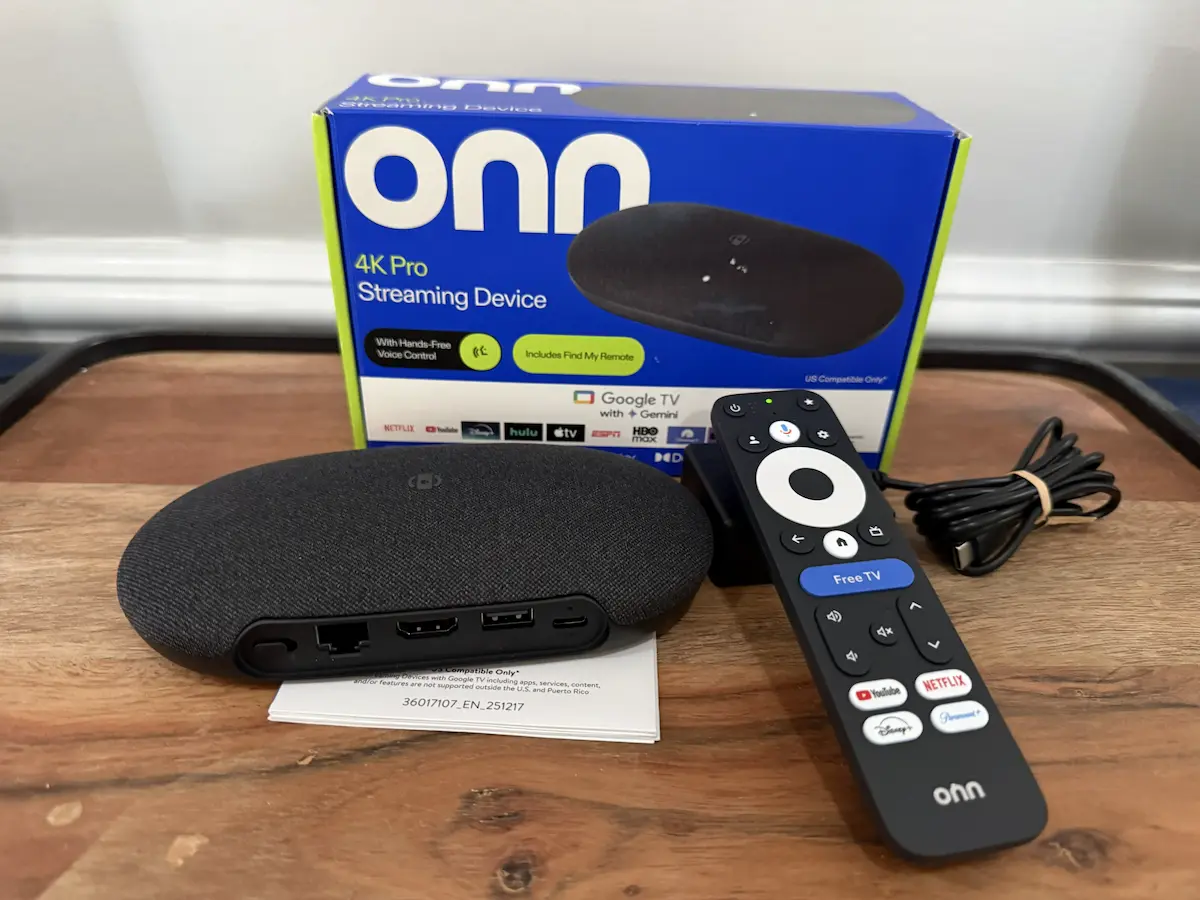
The original model’s manufacturer quick-start guide identifies its USB 3.0 port. Walmart’s second-generation listing specifies USB 2.0, Wi-Fi 6, 3GB of RAM, and 32GB of storage. It listed the newer model at $59.98 when checked on November 4, 2026; pricing and availability can change.
USB 2.0 has a theoretical signaling rate of 480 Mbps, with lower usable throughput. It can still provide sufficient bandwidth for many movie files. USB 3.0 offers more headroom for fast drives and shared peripherals, but neither port guarantees smooth playback of every file.
Check the model label and its documentation before buying accessories. The USB-C power connector on the newer model should not be treated as an additional data port.
Option 1: Use the Onn 4K Pro as a Plex Player
For a library you want to browse across several devices, keep the media on a supported Plex server. That can be an existing computer, a suitable mini PC, or a compatible NAS.
- Connect the media drive to the server. If the files are on a network share, make sure the server has permission to read them.
- Add the folders to Plex Media Server. Create the appropriate movie or TV library and allow the scan to finish.
- Install Plex on the Onn. Sign in and select your personal library.
- Keep the server available. The server and storage must be accessible whenever you want to watch.
- Test representative files. Include your highest-bitrate movie and any audio or subtitle formats you regularly use.
The movie files remain on the server’s storage. A USB drive attached to the Onn does not expand a Plex library hosted on another machine. You generally do not need extra USB storage simply to install the Plex player.
Option 2: Play Movies Directly From a USB Drive
For a drive you want to connect to one television, a local player can be simpler than running a server. Keep the drive as removable storage, connect it to the Onn, and grant your chosen app access to the media folders when prompted.
Choose a Player That Fits Your Library
- Nova Video Player: A useful starting point if you want an organized local library with downloaded posters and movie or TV information. It can catalog accessible USB and network files without Plex Media Server. See the Nova Video Player project for its features and documentation.
- Just Player: A straightforward choice for opening and watching individual files. It uses Android Media3, formerly ExoPlayer, and supports Android TV. Depending on the device’s software, you may need a file manager or file picker to open the USB file. See the Just Player project for compatibility details.
- Kodi: Suits users who want a configurable media library with artwork, subtitles, and more control over playback. Its library is separate from Plex.
- VLC: Another option for browsing and playing accessible local files. Test the formats in your collection, particularly if you use Dolby Vision.
No player guarantees perfect HDR or Dolby Vision playback on every setup. The file’s profile, device firmware, display, and app version all matter. If a movie shows incorrect colors or fails to trigger HDR, check compatibility and try another player with the same file before assuming the drive is at fault.
These apps do not turn the Onn into a Plex server. Artwork downloads and other online features may also need an internet connection even when the movie itself is stored locally.
Choose a Compatible File System
Drive recognition depends on the device’s firmware, file system, partition layout, and sometimes the app. A format supported by another Google TV box is not automatically supported by your Onn.
- FAT32: A useful compatibility option for smaller files, but its individual-file limit is roughly 4GB. Many high-quality movie files exceed that limit.
- exFAT: Supports larger files and is a practical candidate for a portable movie drive. Confirm that your Onn’s current software recognizes it before committing your media collection.
- NTFS: Do not assume it will mount or appear in every player. An app with its own file-system support may behave differently from the operating system.
Test with a spare drive and a few representative files first. If the Onn offers to format an existing movie drive, cancel until you have a backup: formatting erases its contents. Google’s Android TV storage guide explains removable and internal storage, while noting that its instructions do not apply identically to every device.
If the USB Drive Does Not Appear
Start by checking whether Google TV recognizes the drive in its storage settings. That helps separate a drive-access problem from an app-permission problem.
- The drive appears in settings but not in the player: Check the app’s media permissions and folder-access options. Where available, use Android’s file picker to grant access to the correct folder.
- The drive is missing or reported as unsupported: Check the cable, power supply, file system, and partition layout. Try a spare drive with a known-compatible format before changing your movie drive.
- The drive appears but one movie fails: Test another file. Video, audio, or subtitle compatibility can cause playback failures even when storage access works.
Specialist filesystem utilities can sometimes provide another way to access an unsupported format. For example, Paragon’s File System Link can expose USB files through Android’s document-provider interface to compatible apps. Availability and operation on your particular Onn build need verification; installing Nova or VLC alone should not be assumed to provide raw access to an unmounted drive.
Keep Movie Drives as Removable Storage
Choose removable storage when you want to move the drive between a computer and the Onn. Where the firmware offers internal or device storage, that option is intended to expand the device’s storage and involves formatting the drive. It is unsuitable for a movie drive you regularly unplug to load files elsewhere.
Only eligible apps and data can be moved, and slow flash storage may make those apps less responsive. Eject removable drives through the storage settings before disconnecting them.
Check Power if a Drive Disconnects
A portable hard drive or SSD may need more power than the port can reliably supply, especially during startup. If a drive repeatedly disappears, test its cable and consider a compatible powered hub or a drive with its own power supply. A powered hub can address a power shortage; it does not fix an unsupported file system or codec.
Ethernet, Wi-Fi, and High-Bitrate Plex Movies
The built-in 100 Mbps Ethernet connection can be perfectly adequate for many streams, but usable throughput is below the headline link rate. High-bitrate movie files can exceed that capacity during peaks, even when their average bitrate looks manageable.
A Blu-ray remux preserves the disc’s existing compressed video and audio streams in a different container. It is not uncompressed video. Those preserved streams can still be demanding enough to expose a network bottleneck.
Strong Wi-Fi may outperform the built-in wired port. In Lon.TV’s testing of the 2026 Onn 4K Pro, wireless throughput was substantially higher than the Ethernet port’s limit. Your result depends on signal strength, interference, router placement, and the rest of the network.
A compatible USB Gigabit Ethernet adapter is another option. Its gigabit label describes the adapter’s network connection, not guaranteed throughput through the Onn. Driver support, the USB port, hubs, and other attached devices can all limit performance. The 2026 model’s USB 2.0 connection cannot deliver full gigabit throughput.
For networked Plex playback, connect the server by Ethernet where practical and test a demanding file from beginning to end. Plex’s networking guidance emphasizes the benefit of a wired server connection.
Direct Play Depends on More Than 4K Support
The Onn’s 4K and Dolby Vision capabilities are useful, but compatibility also depends on the codec profile, bit depth, container, HDR format, audio track, subtitles, and player version. A specification advertising 4K at 60 frames per second does not establish that every supported codec works at that resolution and frame rate.
Dolby Vision support in a commercial streaming app also does not guarantee identical handling of every Dolby Vision profile found in a local movie file.
Plex can respond to compatibility differences in several ways:
- Direct Play: Sends a compatible file without changing its container or media streams.
- Direct Stream: Repackages compatible streams into a suitable container without re-encoding those streams.
- Transcoding: Converts an incompatible audio or video stream. The video can remain unchanged while audio is converted.
Unsupported subtitles can also require video conversion. Plex’s playback overview explains these distinctions. Use the playback information and server dashboard to see what is happening rather than assuming every buffering problem comes from the network.
Dolby Atmos Does Not Guarantee Lossless Audio Passthrough
Dolby Atmos can arrive in different audio formats. Support for streaming-service Atmos does not automatically include passthrough of Dolby TrueHD with Atmos from a Blu-ray file. DTS core playback likewise does not establish DTS-HD Master Audio or DTS:X support.
Lon.TV’s 2026 review reports that the newer Onn lacks lossless audio passthrough. If preserving those original audio bitstreams is essential, choose a player with verified support for your exact app and audio system. The Shield TV Pro offers broader home-theater audio support, although its server performance and format capabilities still need to fit your library.
Unsupported audio may be converted on the device, transcoded by the server, or handled through a compatible fallback track. Do not assume Plex will always convert TrueHD to Dolby Digital Plus, or that the server necessarily performs every conversion. Check both the Plex playback information and the format reported by your receiver or soundbar.
Plex Settings and Troubleshooting
Menu labels can change between app releases. Use Plex’s Android TV settings documentation alongside the options shown on your device.
- Check local streaming quality. If you want original-quality playback and the network can sustain it, choose the corresponding quality setting. A lower quality limit can trigger conversion.
- Review automatic quality adjustment. It can be helpful on variable connections. Disable it for a controlled original-quality test, then evaluate the result.
- Match audio settings to the HDMI chain. Enable passthrough only for formats your device, TV, and audio equipment can handle. TV speakers, ARC, and eARC setups can have different limits.
- Test another audio or subtitle track. This can reveal whether a particular track is causing conversion or playback failure.
- Try refresh-rate matching. Where available, it may reduce movie judder. It does not resolve network buffering or unsupported codecs.
- Check the server dashboard. Identify whether video, audio, or both are being converted before replacing hardware.
Which Setup Makes Sense?
For an existing Plex server, the Onn 4K Pro is worth considering as an affordable player, provided your library’s formats and your audio expectations suit it. A demanding local library deserves a more careful compatibility check than ordinary commercial streaming.
For a single television and a portable movie drive, start with removable storage and a local player. Nova is a practical choice for a poster-based library; Just Player is worth trying for individual files. Test your actual movies, subtitles, and audio tracks before settling on an app.
For an all-in-one Plex server and player, consider a supported Shield model or a separate computer or NAS paired with the Onn. A separate server gives you more flexibility to choose storage and processing power for the library you actually have.