How We Installed an AI Using Vulkan Acceleration on a 2017 Laptop
By InsightTechDaily Staff — December 2025

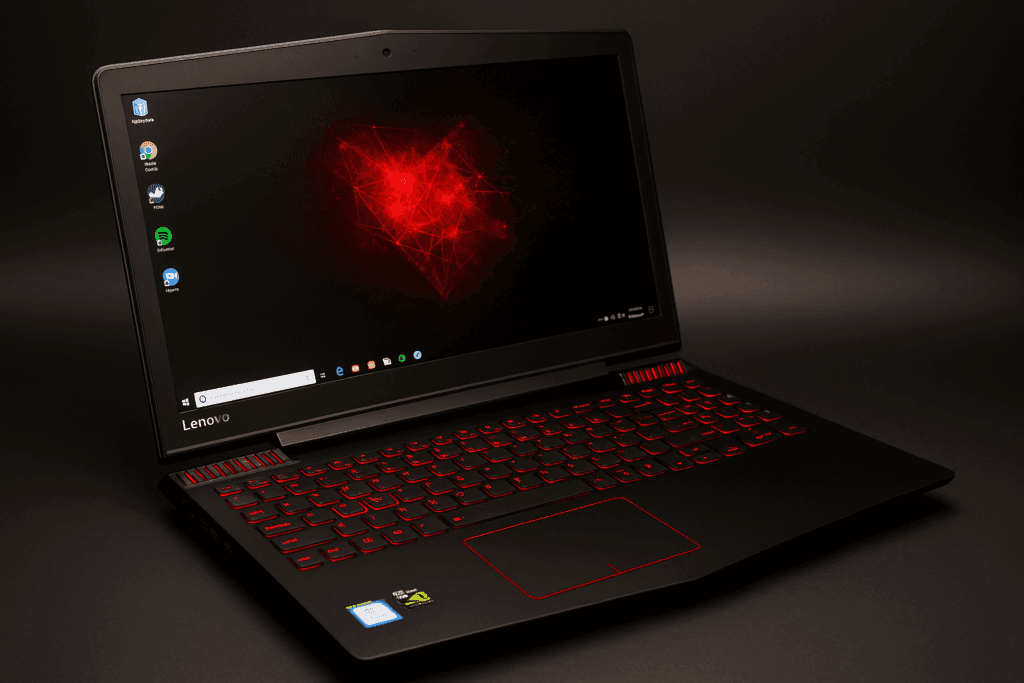
If you’ve ever wondered whether your old gaming laptop can run a modern AI assistant — the answer is yes, absolutely. And not only can it run one, it can run it well. You don’t need a new GPU, a $3000 workstation, or a 24-core CPU. We built a fully accelerated local AI assistant on a 2017 Lenovo Y520, and in this guide I’ll walk you through the exact process, what broke, what worked, and the performance improvements I squeezed out of this old machine.
Today, running a local LLM is less about having “the perfect hardware” and more about being creative with the hardware you already have. In my case, I had a dusty Y520 with a sketchy power button and a 1050 Ti that wasn’t playing any games anymore — but hey, it still booted up.
I’ll be honest: I installed, broke, reinstalled, optimized, broke again, and reinstalled this setup multiple times. The first install felt great until I added TTS, then everything fell apart. Eventually I found a combination that is shockingly smooth: Phi-3 Mini + Vulkan + OpenWebUI + Kokoro TTS.
If you have similar hardware this setup should work for you as well. You may find better setup than mine but this is what i got to work for me.
Hardware Used
- Laptop: Lenovo Y520 (2017)
- RAM: 16 GB DDR4
- GPU: NVIDIA GTX 1050 Ti (4GB VRAM)
- CPU: Intel 7th-Gen Quad-Core
- Storage: 256GB SSD + 2TB HDD
- OS: Ubuntu 22.04 LTS

Phip-3 Mini Model Card Summary
Phi-3 Mini is a lightweight, efficient 3.8B-parameter language model created by Microsoft and designed specifically for laptops, older GPUs, and low-power edge devices. It focuses on high-quality reasoning, instruction following, and overall responsiveness while keeping system requirements low.
Key Specifications
- Parameters: 3.8 billion
- Context Window: 4K (standard) or 128K (extended variants)
- Supported Formats: ONNX, Ollama (Q4_0), GGUF
- Optimized Backends: Vulkan, CPU, Metal, CUDA (optional)
Why It Works on Older Hardware
- Designed for mobile and edge devices
- Low VRAM requirements (fits in 3–4GB GPUs like the GTX 1050 Ti)
- Runs efficiently using Vulkan instead of CUDA
- Quantized versions reduce memory footprint significantly
Strengths
- Excellent instruction following
- Strong reasoning & math for its size
- Fast inference even on low-end hardware
- Lower hallucination rate compared to similar 3–4B models
Limitations
- Not suited for very long context reasoning (keep prompts concise)
- Complex coding tasks may exceed its capacity
- Smaller model = sometimes verbose or repetitive without tuning
- No built-in RAG or memory (relies on external tools)
Ideal Use Cases
- Local personal AI assistant
- Offline chatbots
- Learning, tutoring, and note-taking
- Light coding assistance
- Voice assistants (paired with Kokoro TTS)
This model is a perfect match for older systems like the Lenovo Y520, allowing users to run modern AI workloads without expensive hardware upgrades.
Local AI Stack
✔ Phi-3 Mini (Q4_0) via Ollama
- Context window: 2048 tokens
- Backend: Vulkan
- KV Cache: GPU-Resident
✔ OpenWebUI Interface
This is what makes the model feel like a “modern AI assistant” instead of a command-line science project. It handles tools, memory, plugins, and TTS with a clean UI.
✔ Kokoro TTS (GPU Accelerated)
Kokoro ONNX runs beautifully on the 1050 Ti. Once I moved it to GPU, voice output became smooth, natural, and low-latency.
Why Vulkan Was the Breakthrough
Here’s the short version of the story:
I did not have any luck and NVIDIA toolkit issues forced me to stop trying
I fought with CUDA toolkits, mismatched drivers, outdated runtime libraries, and dependency conflicts. After multiple failures, I gave up and tried Vulkan instead. Vulkan is a low-overhead GPU compute API that avoids many of the CUDA version conflicts found on older NVIDIA cards. Ollama’s new Vulkan backend allows you to run models even on aging GPUs like the 1050 Ti. Without the Vulkan GPU acceleration this laptop AI is to slow, wait times and hallucinations were terrible. Keep in mind every build is different and “your mileage may vary”
Vulkan turned out to be:
- Extremely lightweight
- Very stable on older GPUs
- Fully supported in Ollama’s new engine
- Much lower overhead than CUDA
- Easier to configure
Key Vulkan Environment Variables
OLLAMA_VULKAN=1
OLLAMA_LLM_BACKEND=vulkan
OLLAMA_NEW_ENGINE=true
GGML_VK_VISIBLE_DEVICES=0
OLLAMA_KV_CACHE_TYPE=gpu
OLLAMA_CONTEXT_LENGTH=2048
Benchmarking Results
To measure performance, I used a consistent test prompt:
“Write a 600-token technical article.”
CPU Only (Before)
- ~112 seconds for 600 tokens
- CPU maxed out
- KV cache entirely on system memory
Early Vulkan Attempts
- ~66 seconds for 600 tokens
- Some GPU buffers active
- Still inconsistent
Final Vulkan-Optimized Build
- ~59 seconds for 600 tokens
- Model VRAM buffer: ~2021 MiB
- GPU KV Cache: 384 MiB
- GPU Compute Buffer: 90 MiB
At this point the GPU is fully engaged, and the CPU load stays low. The AI feels significantly more responsive.
Why This Works on a 4GB GPU
Phi-3 Mini is small but capable, and Vulkan keeps memory overhead surprisingly tight. The combination works because:
- Q4 quantization shrinks the model
- 2048 context avoids runaway VRAM usage
- Vulkan avoids CUDA’s heavy driver overhead
- KV cache remains on GPU instead of RAM
Conclusion
We successfully turned a 2017 gaming laptop into a responsive, fully accelerated AI workstation. It’s stable, offline-capable, and surprisingly fast. If your hardware looks anything like mine, you can absolutely build the same setup.
Local AI is becoming less about specs and more about experimentation — and this setup gives you the freedom to tinker, learn, and build without breaking the bank. Now that the foundation is stable, the next step is integrating tools and figuring out what we want this AI system to become.